Cloud identity for Linux
SSO, MFA, compliance, and TPM-backed keys across Entra ID/Intune and OIDC providers such as Keycloak and Okta — with a practical path toward sovereign cloud identity.
Native Okta MFA preview — try it in Community Nightly. Explore Okta setup →
One identity plane
Your cloud identity should follow users to every Linux session.
Remote servers and graphical workstations are different security contexts. Himmelblau gives each the right authentication experience while connecting both to the same Entra ID, PAM, and NSS foundation.
For administrators
MFA-secured SSH, directly against your cloud identity.
Resolve Entra or OIDC users through NSS, authenticate through PAM, complete the tenant’s MFA challenge, and enter the shell. Remote sessions require MFA by default.




Connect as a Cloud user
Himmelblau resolves the cloud identity as a Linux account through NSS—without pre-creating a local user.
Authenticate with the Identity Provider
PAM hands the request to Himmelblau. The exact credential flow follows the authentication methods configured by the Identity Provider.
Complete native MFA
MFA happens inside the SSH experience.
Enter the shell
The authenticated cloud identity arrives as a normal POSIX session, ready for shared hosts, remote administration, and group-based access control.
For workstations
The first desktop login becomes a secure daily habit.
Users establish their identity, satisfy MFA, and enroll a Hello PIN bound to that Linux device. Linux Hello can optionally be disabled, requiring MFA at every desktop login.
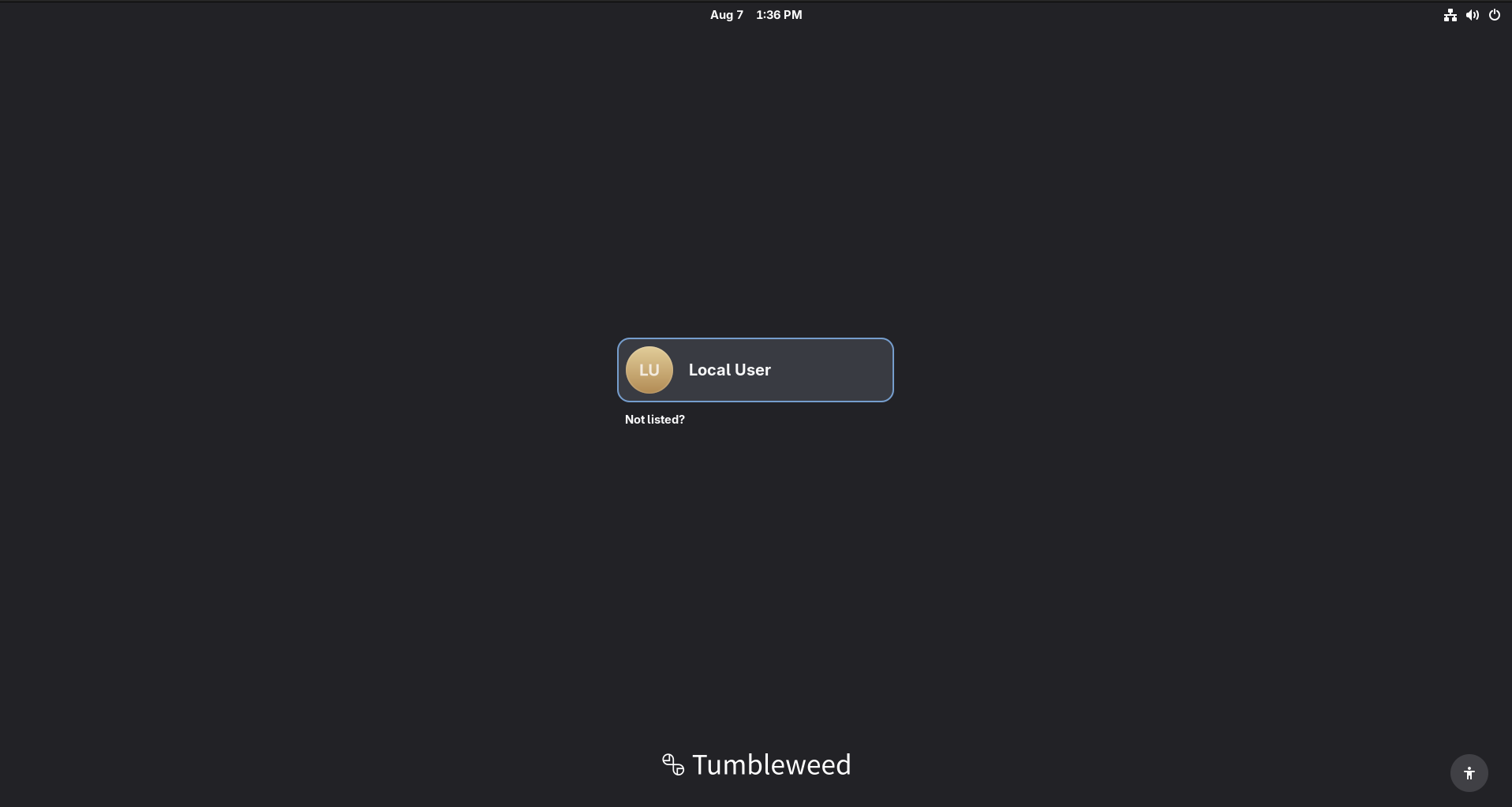
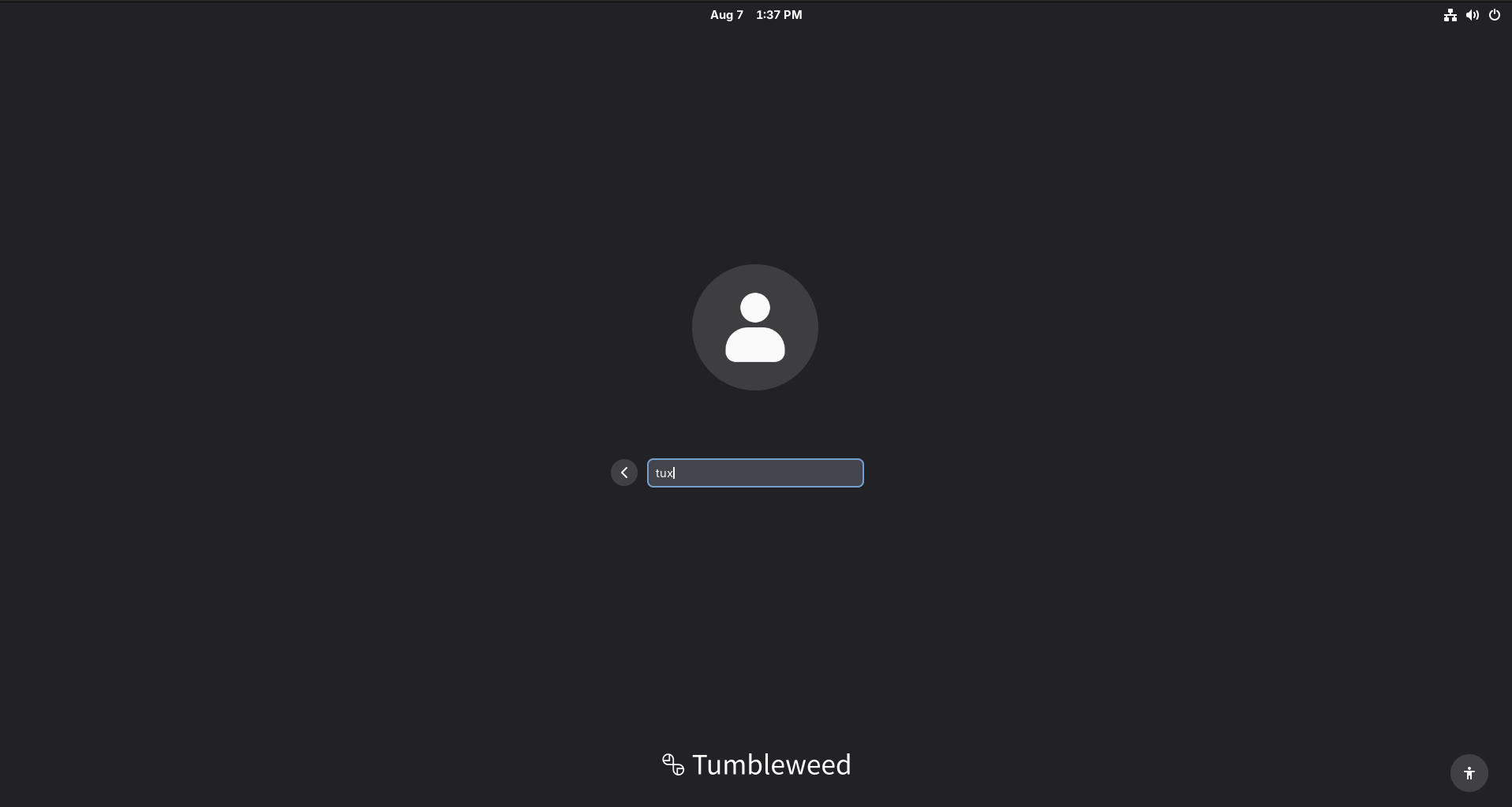
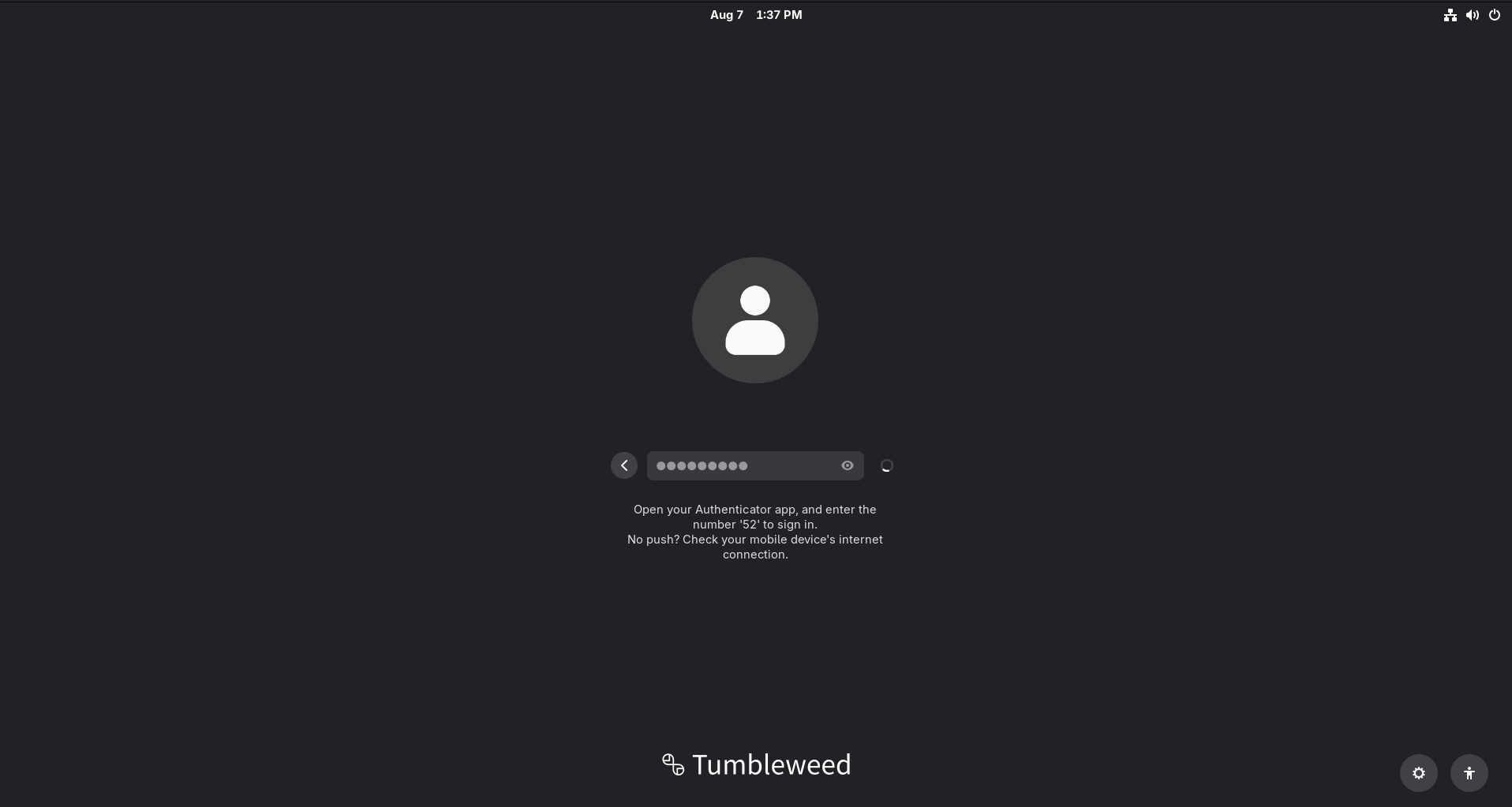
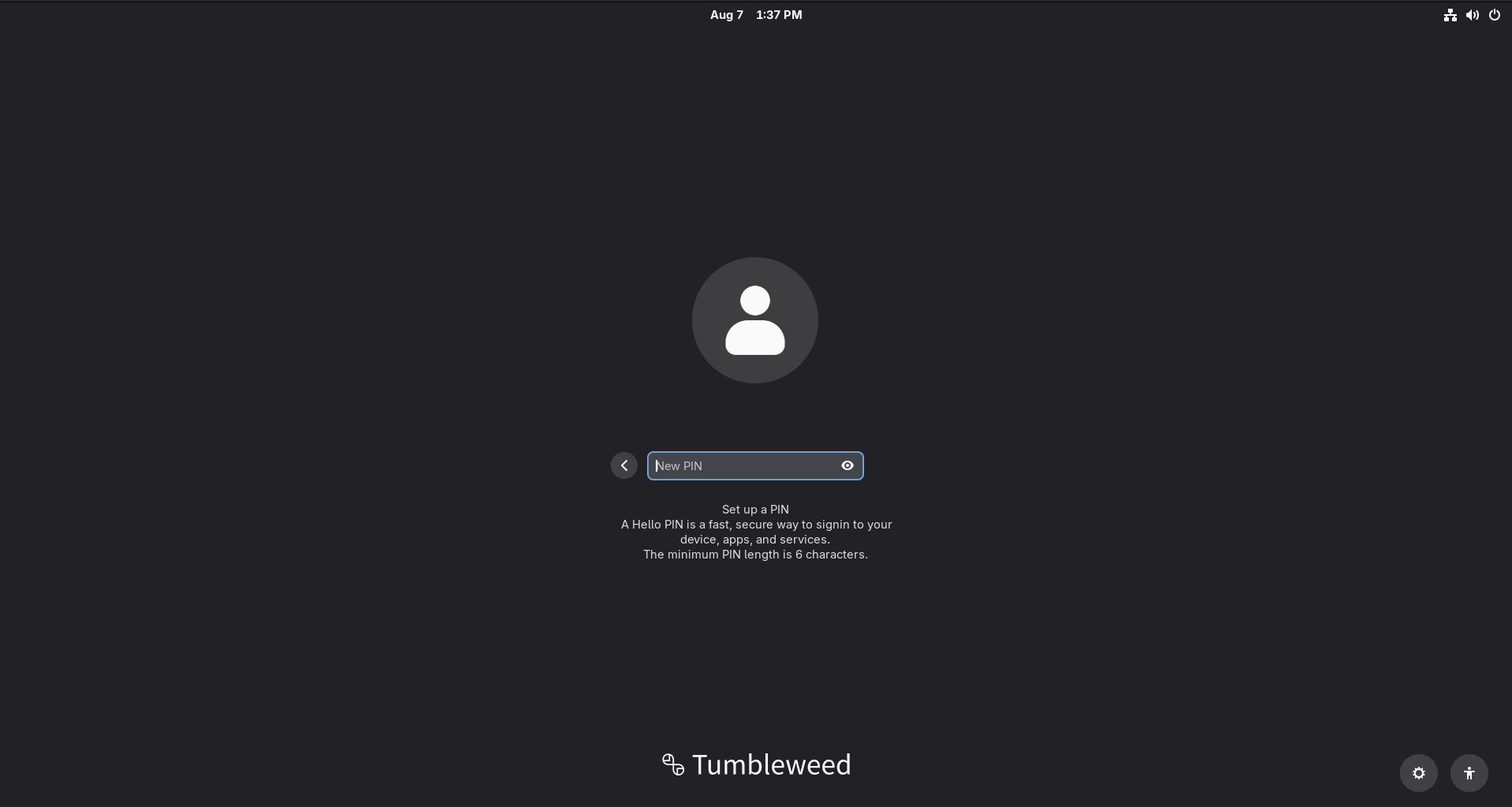
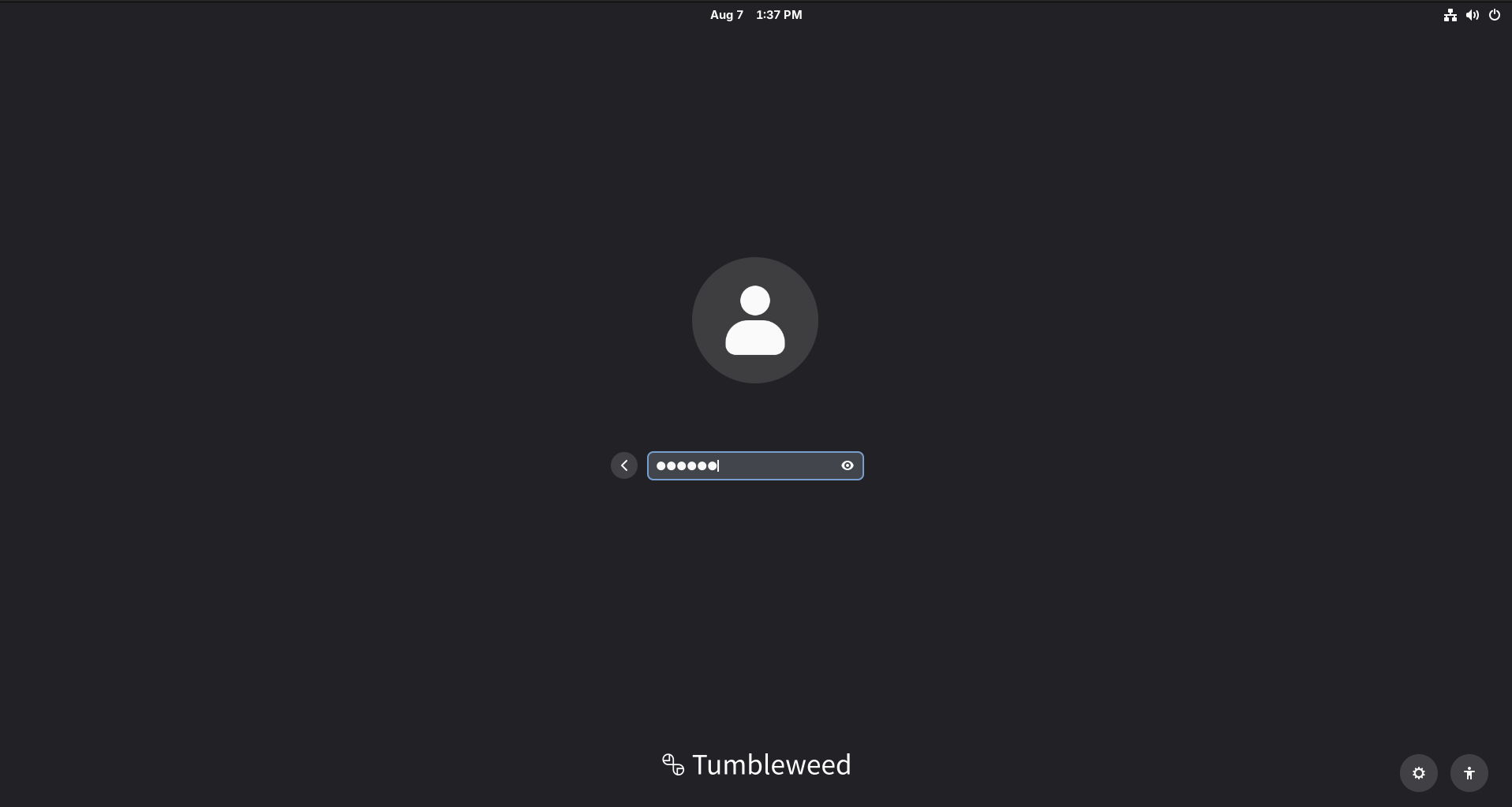
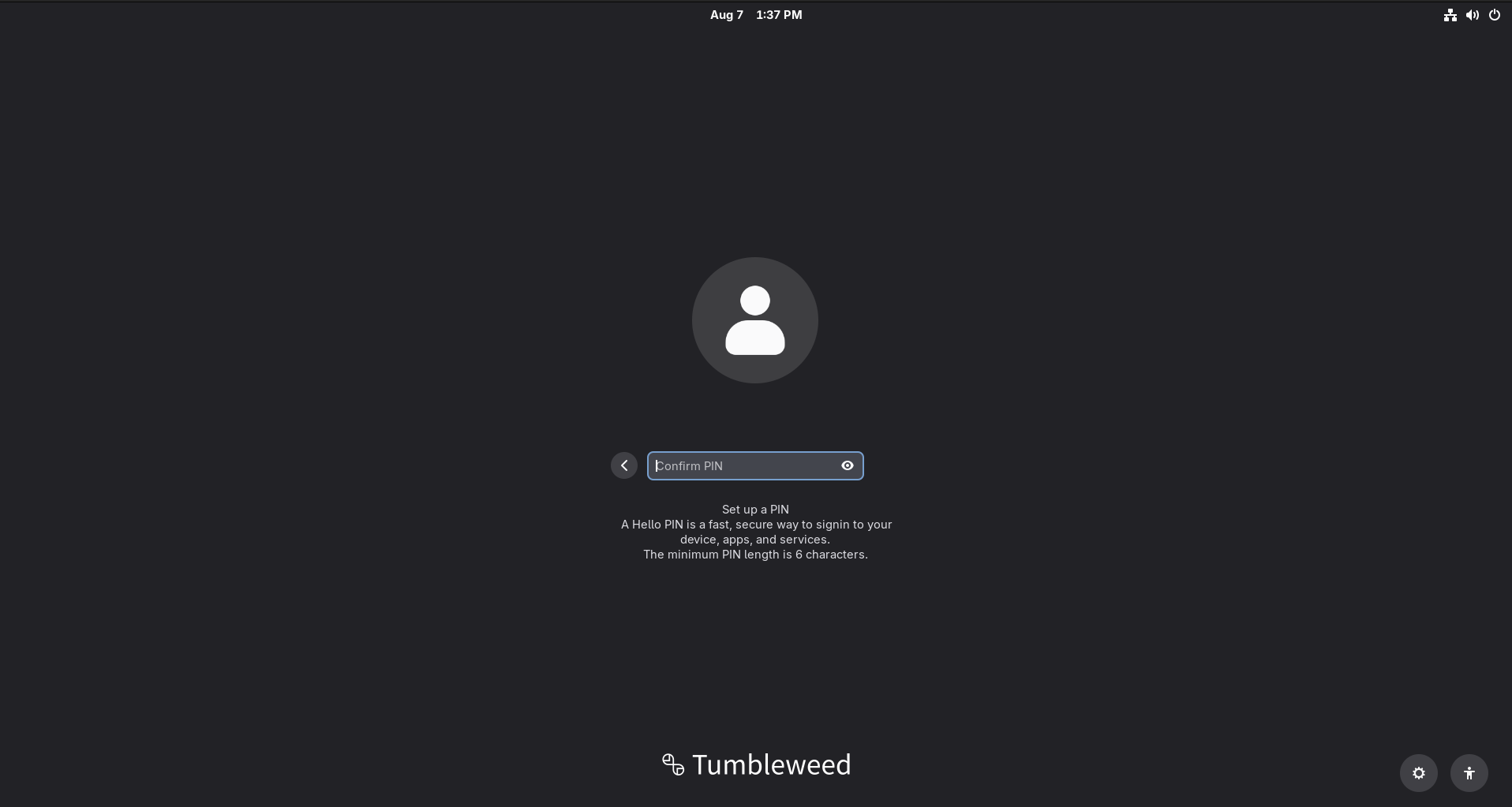
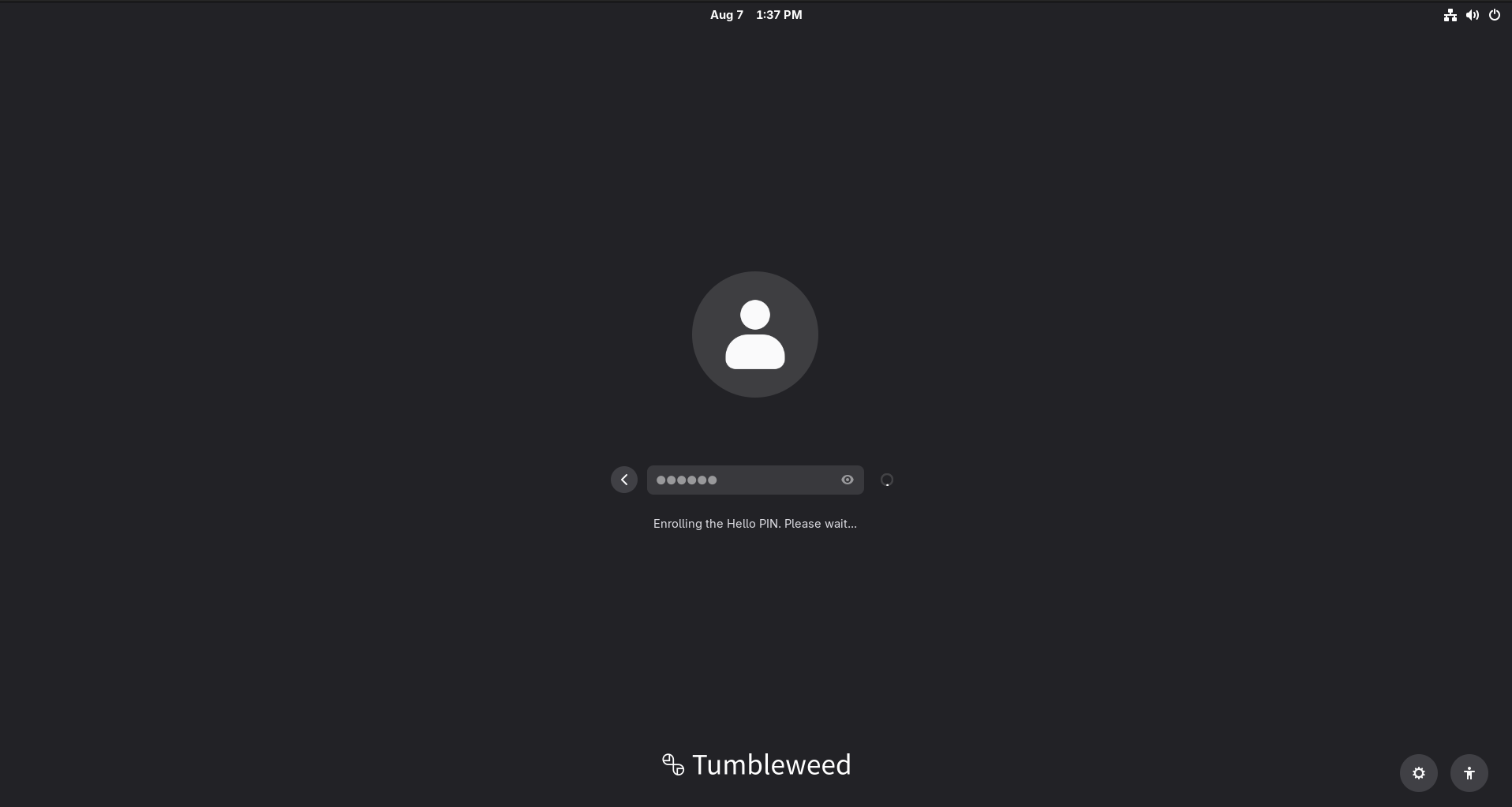
Choose the cloud account
“Not listed?” opens a prompt for entering your Cloud identity username.
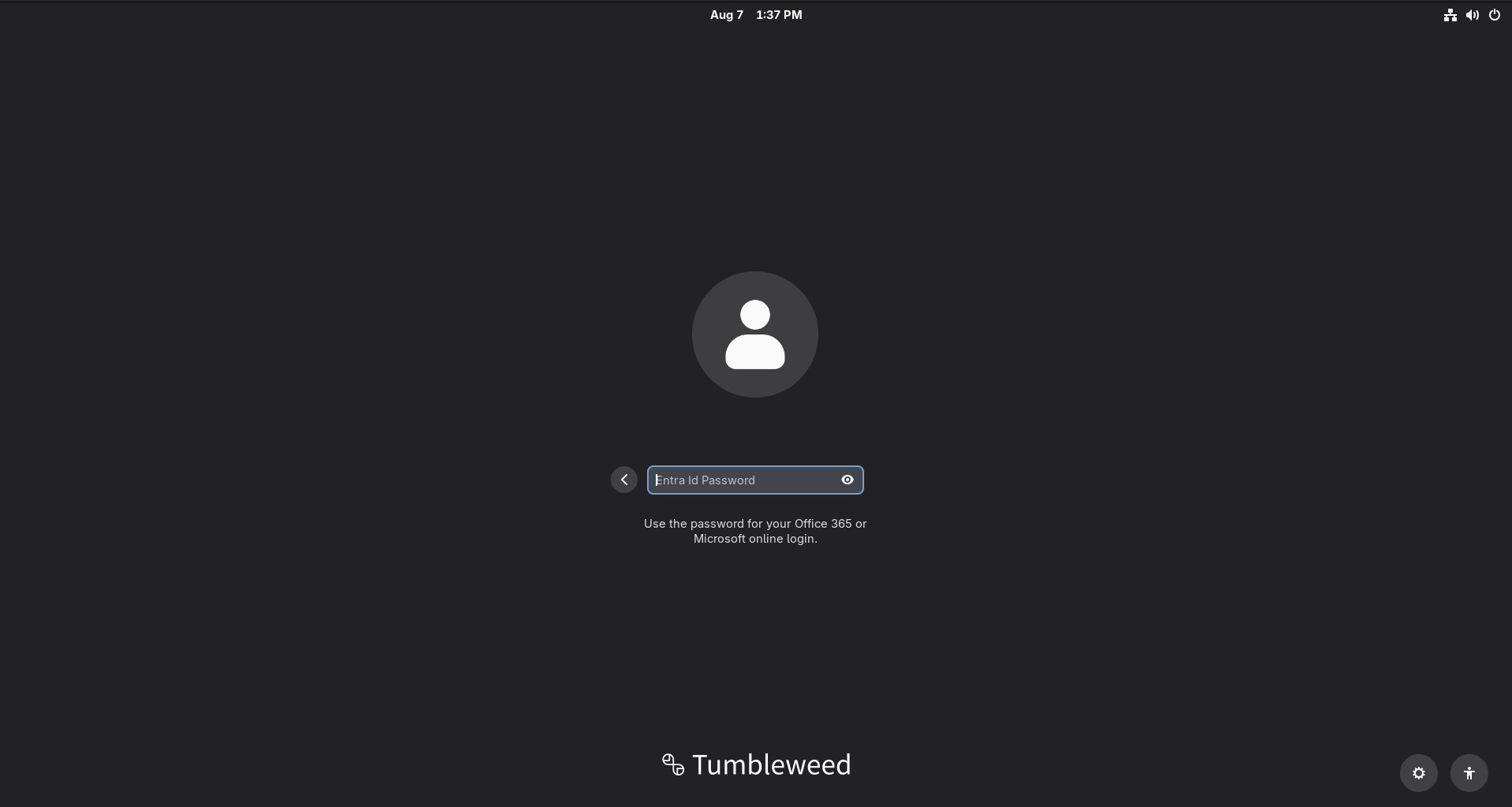
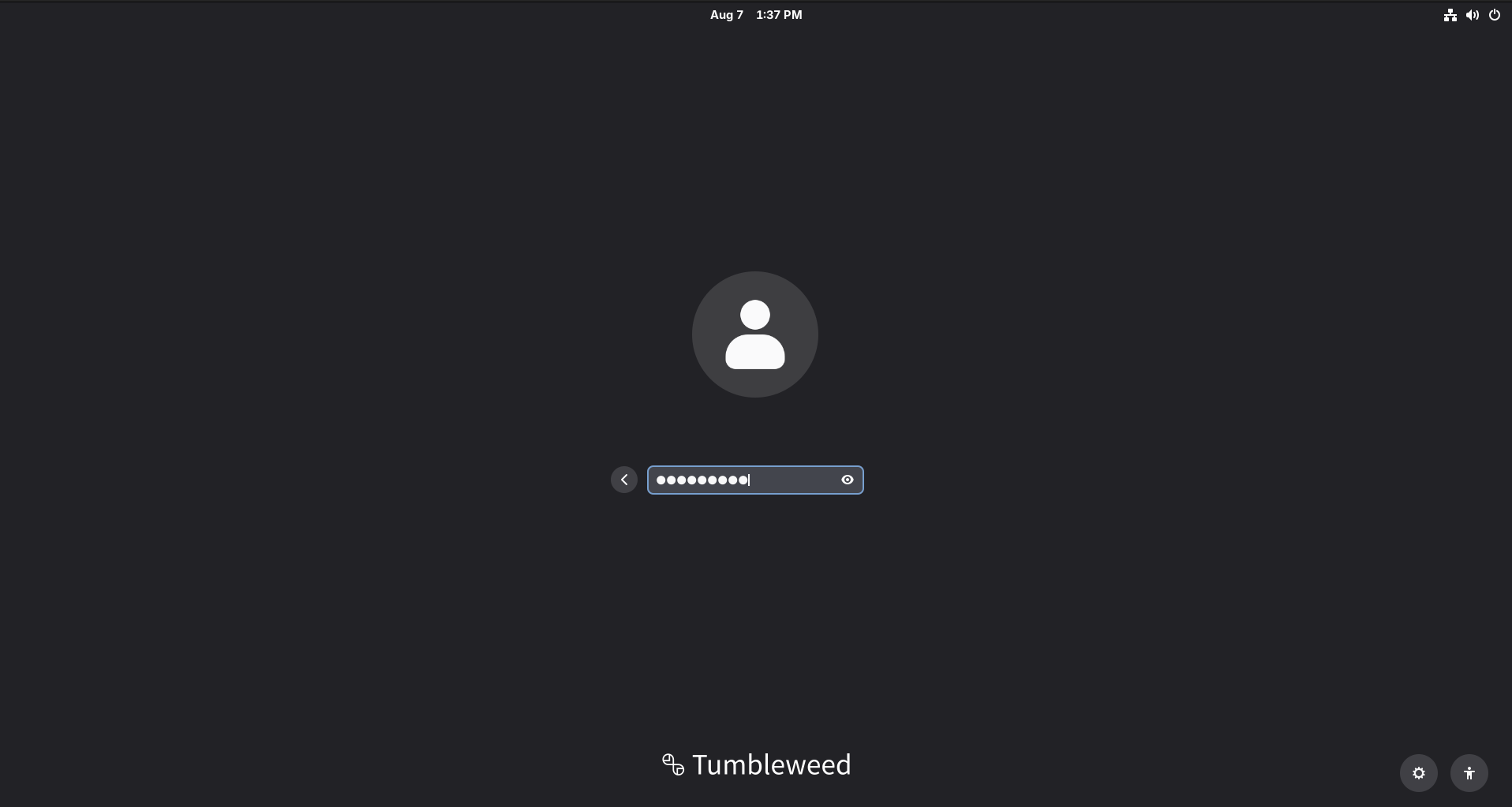
Establish identity
The user signs in with their Cloud credentials and the tenant’s configured authentication requirements.
Satisfy MFA
Native MFA is presented at the Linux greeter, keeping the first-login journey in one coherent flow.
Enroll a Hello PIN
The PIN unlocks a cryptographic credential tied to this device. With a hardware TPM configured, key material can be hardware-backed.
Start the session
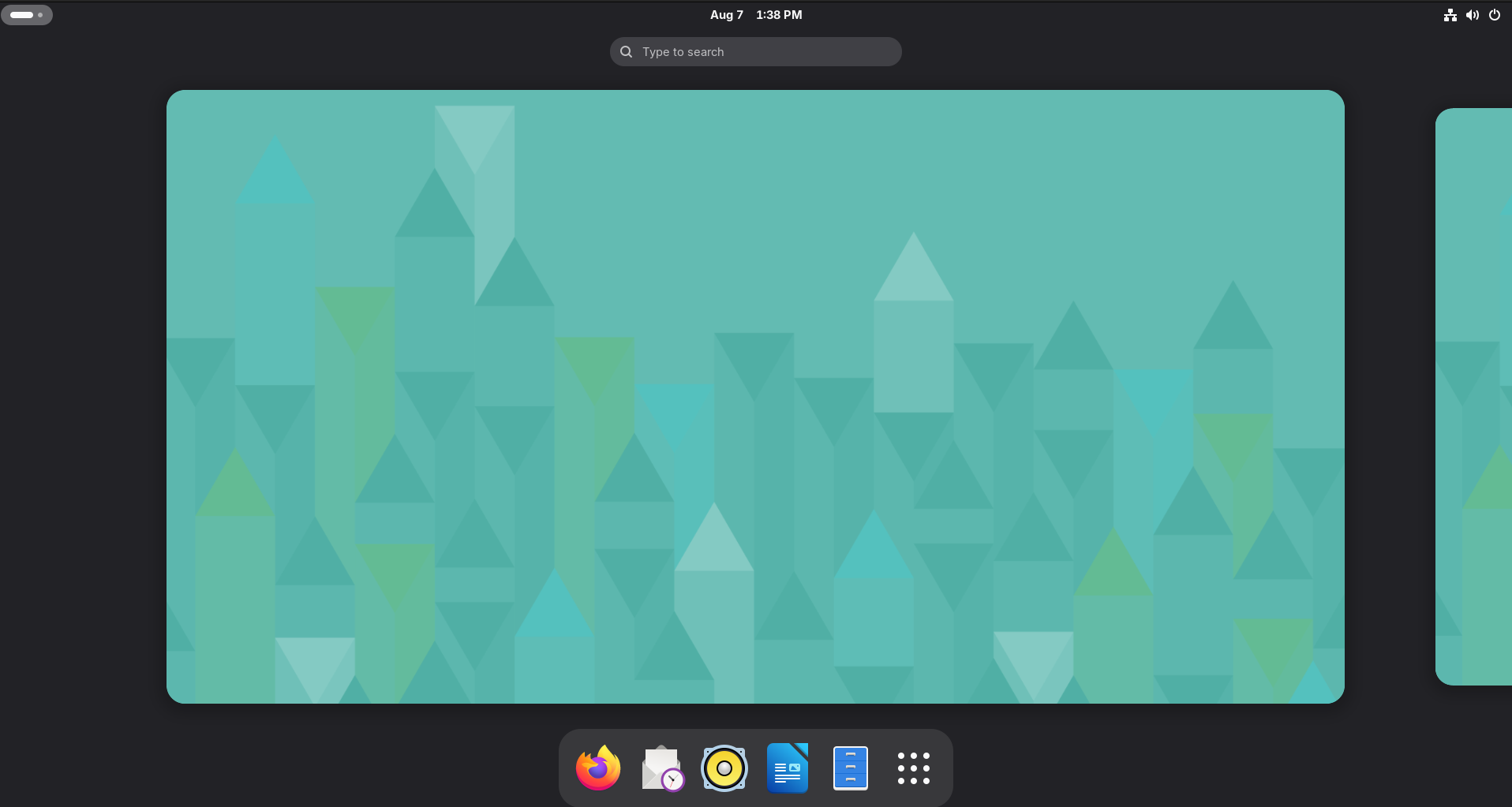
The desktop opens as the Cloud user, with the identity and token foundation needed by browser and application SSO.
The next login
Enroll once. Return with the device-bound PIN.
Hello PIN is intended for local authentication by default: convenient at the workstation, without weakening the remote SSH boundary.

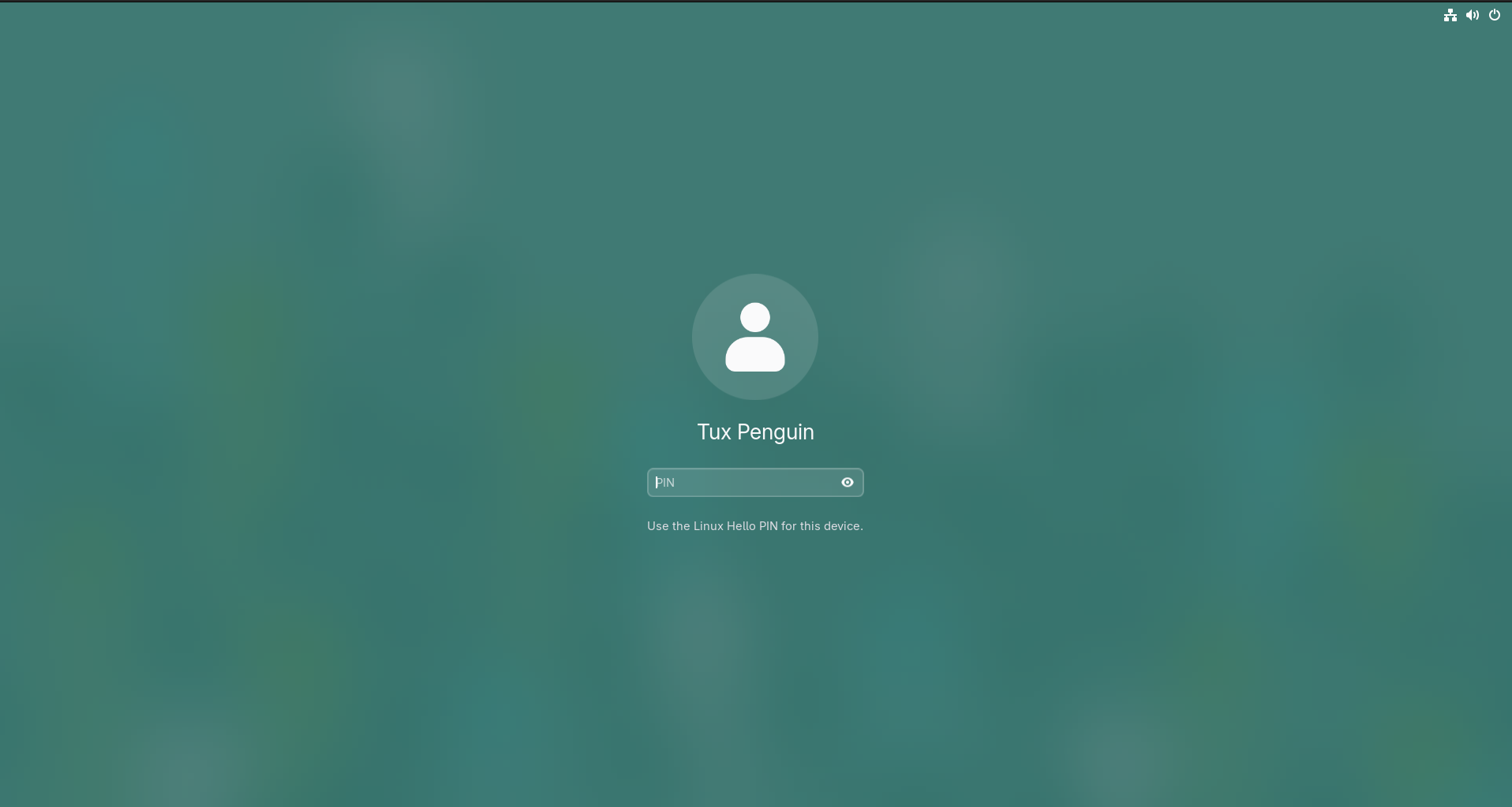

Wake the workstation
Return to the familiar local lock screen on the enrolled Linux device.
Enter the device-bound PIN
The user authenticates locally with the Hello PIN enrolled during their first sign-in.
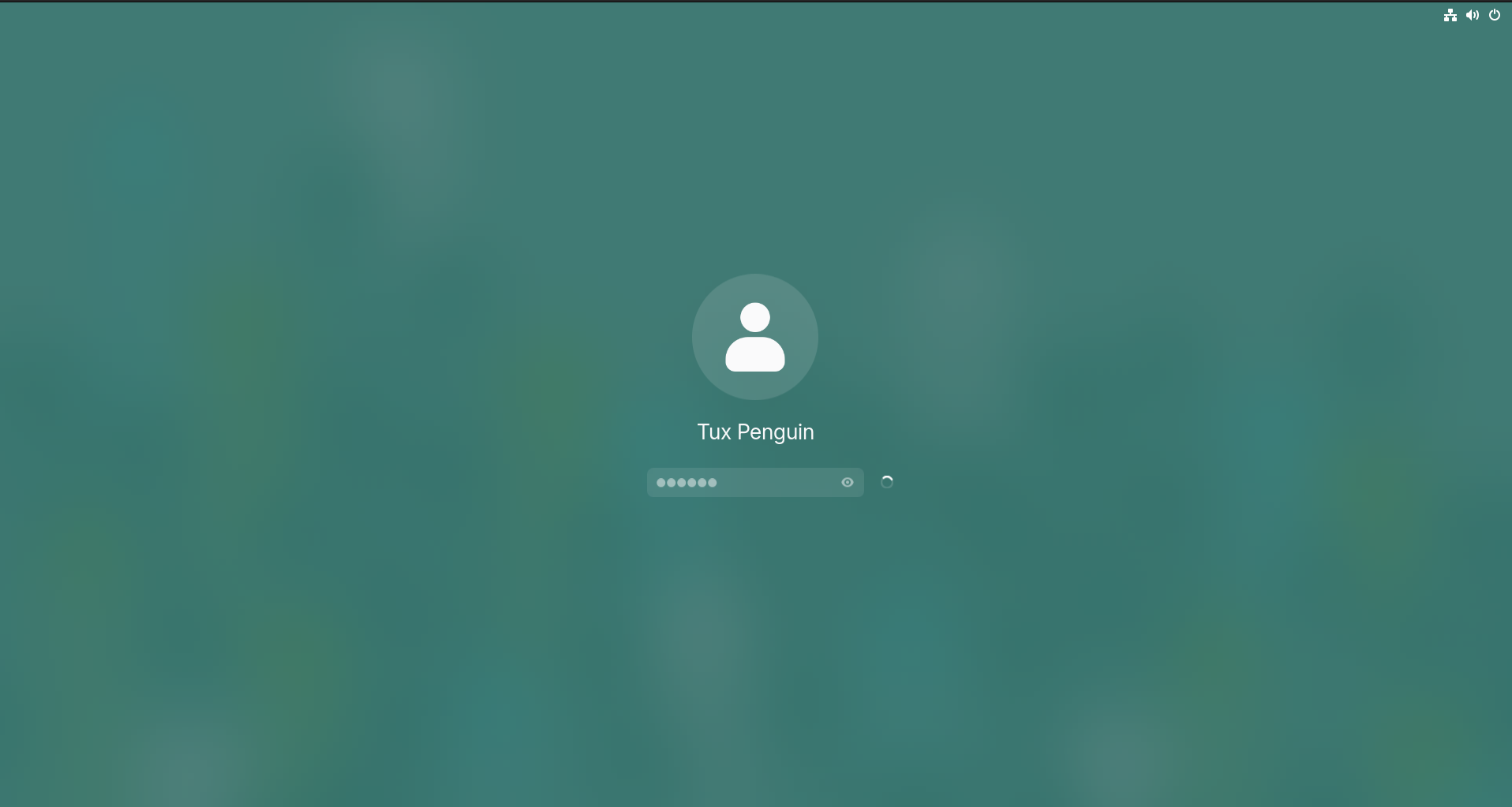
Unlock the protected credential
Himmelblau validates the PIN and unlocks the cryptographic credential bound to this device.
Continue the workday
The desktop opens with native SSO integration.
The session continues
Sign in to Linux. Open the workday already authenticated.
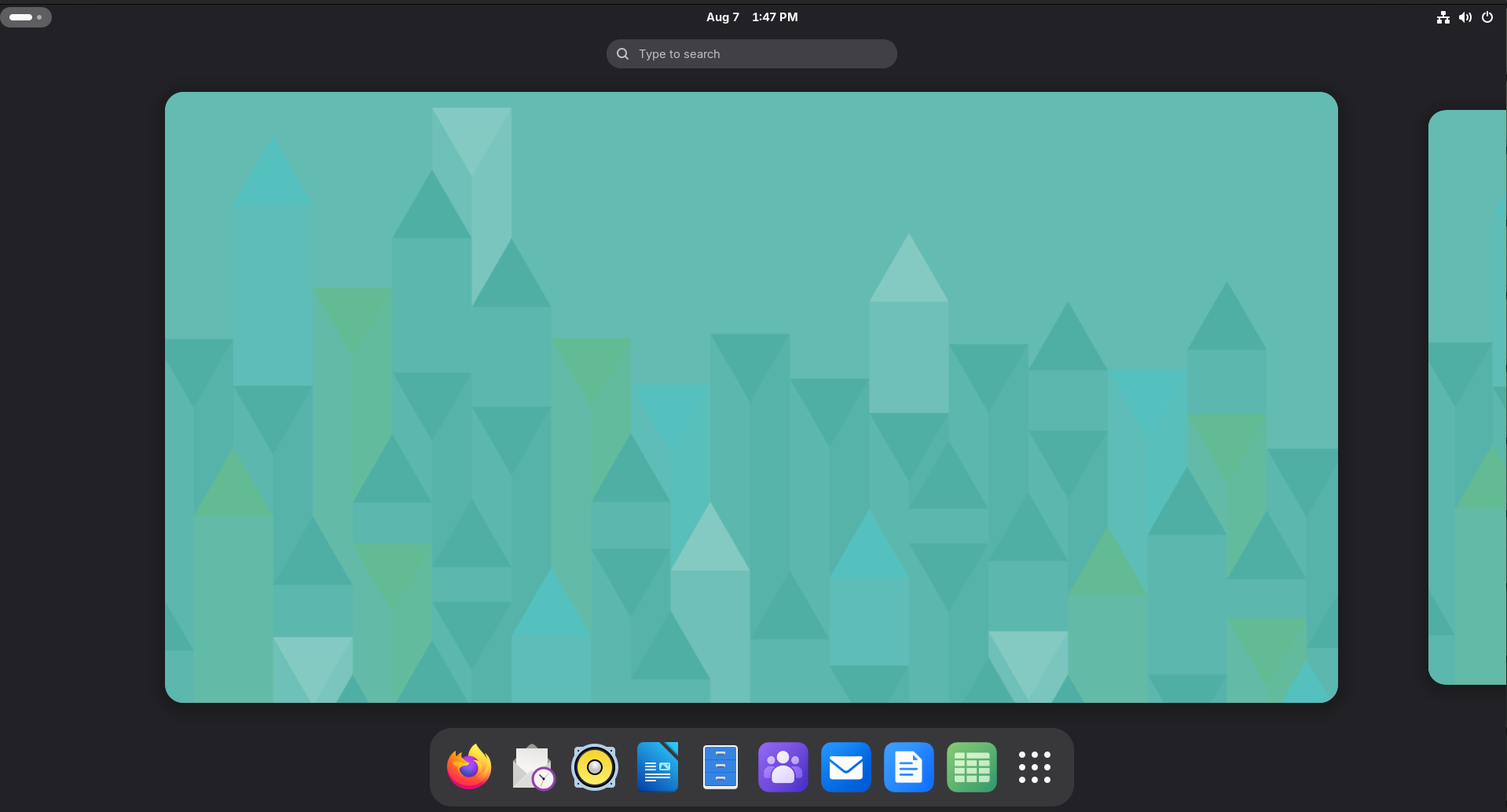
The authenticated session can carry SSO into Firefox, Thunderbird, and Microsoft 365 web applications, while packaged launchers make the suite feel at home on the desktop.
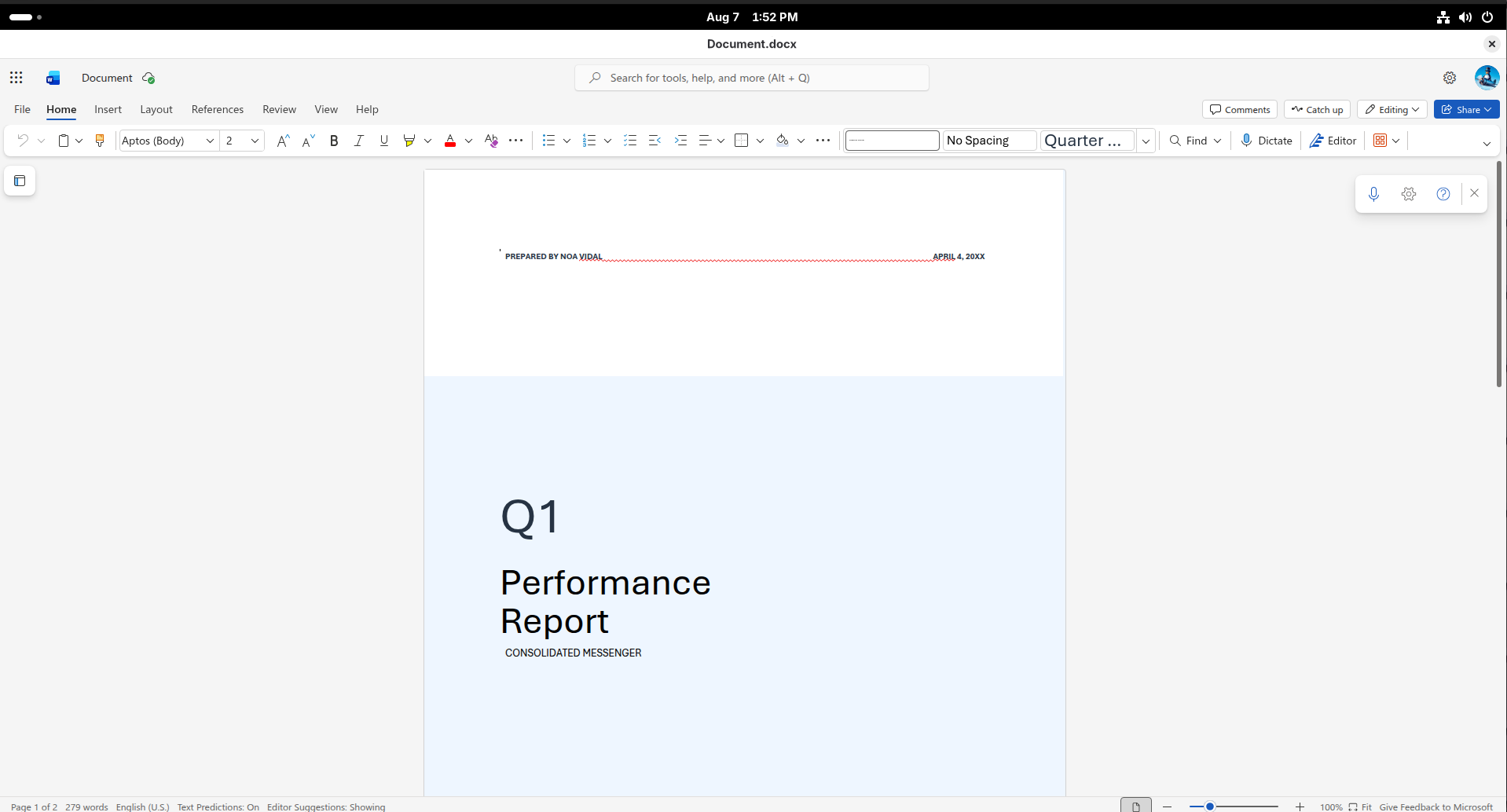
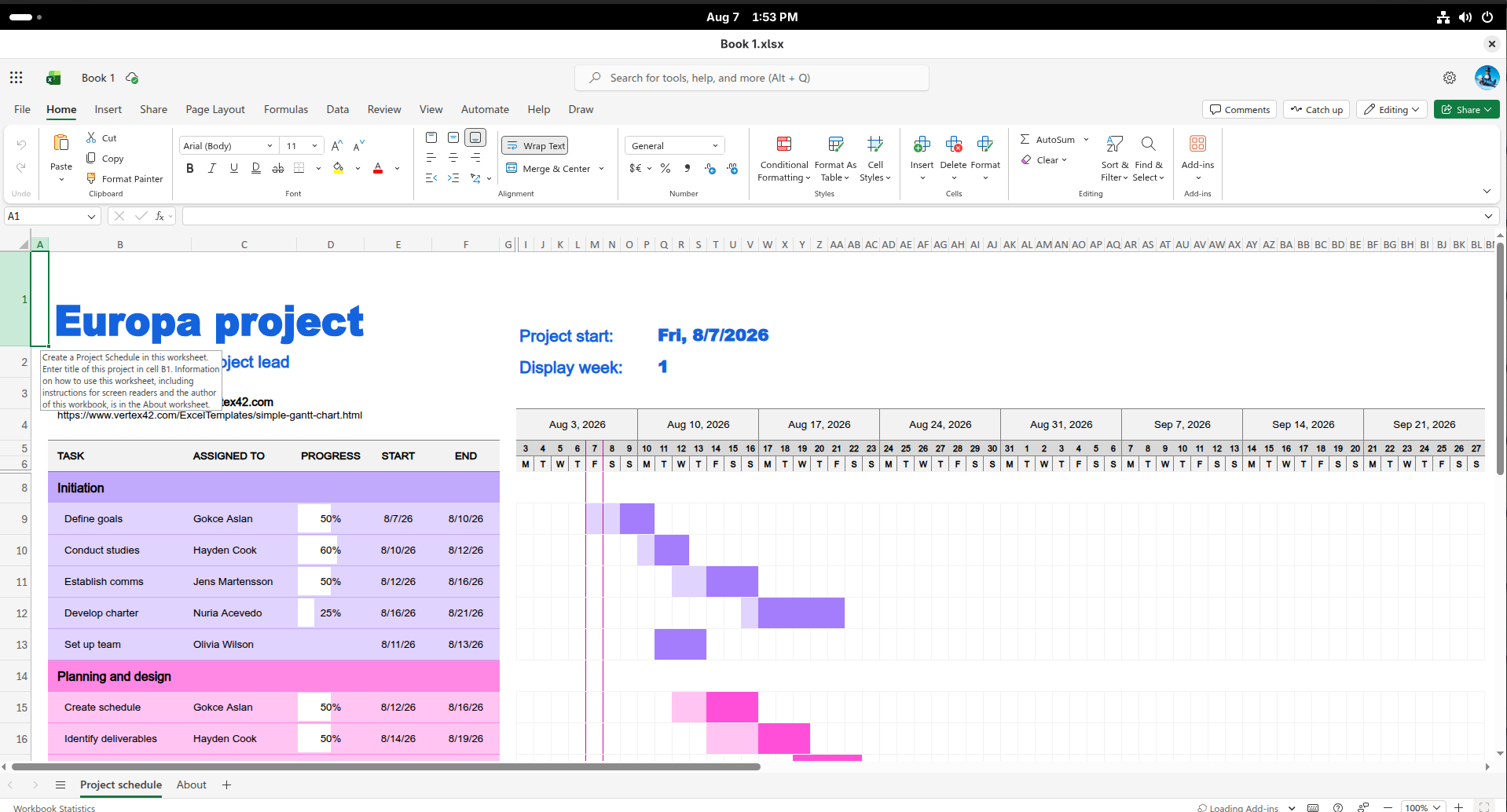

Applications feel native
Launch Outlook, Teams, Word, Excel, and PowerPoint from the desktop rather than rebuilding the workday around browser tabs.
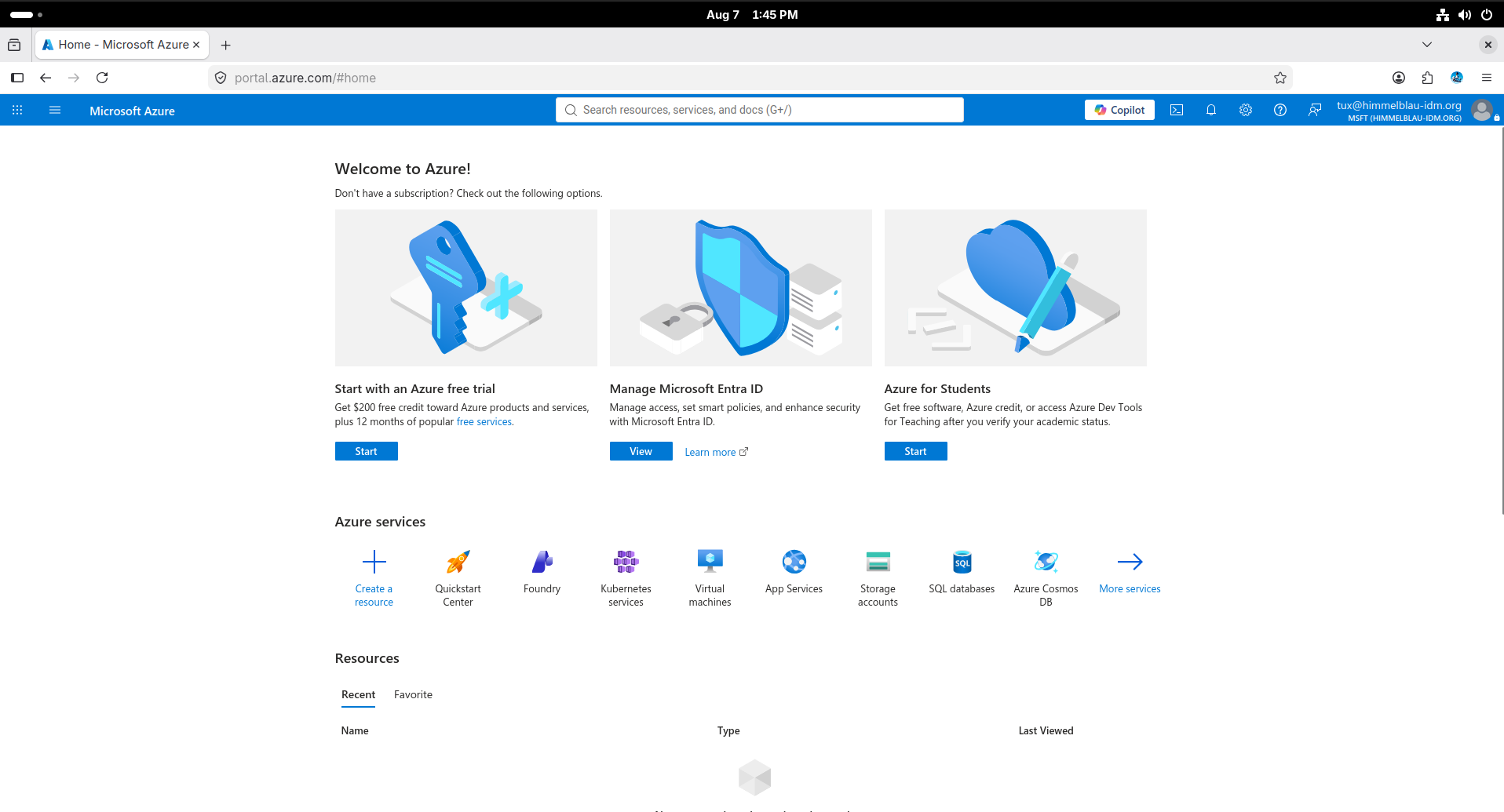
Browser SSO
PRT-based authentication lets supported browsers reach Entra-protected services without another full sign-in.
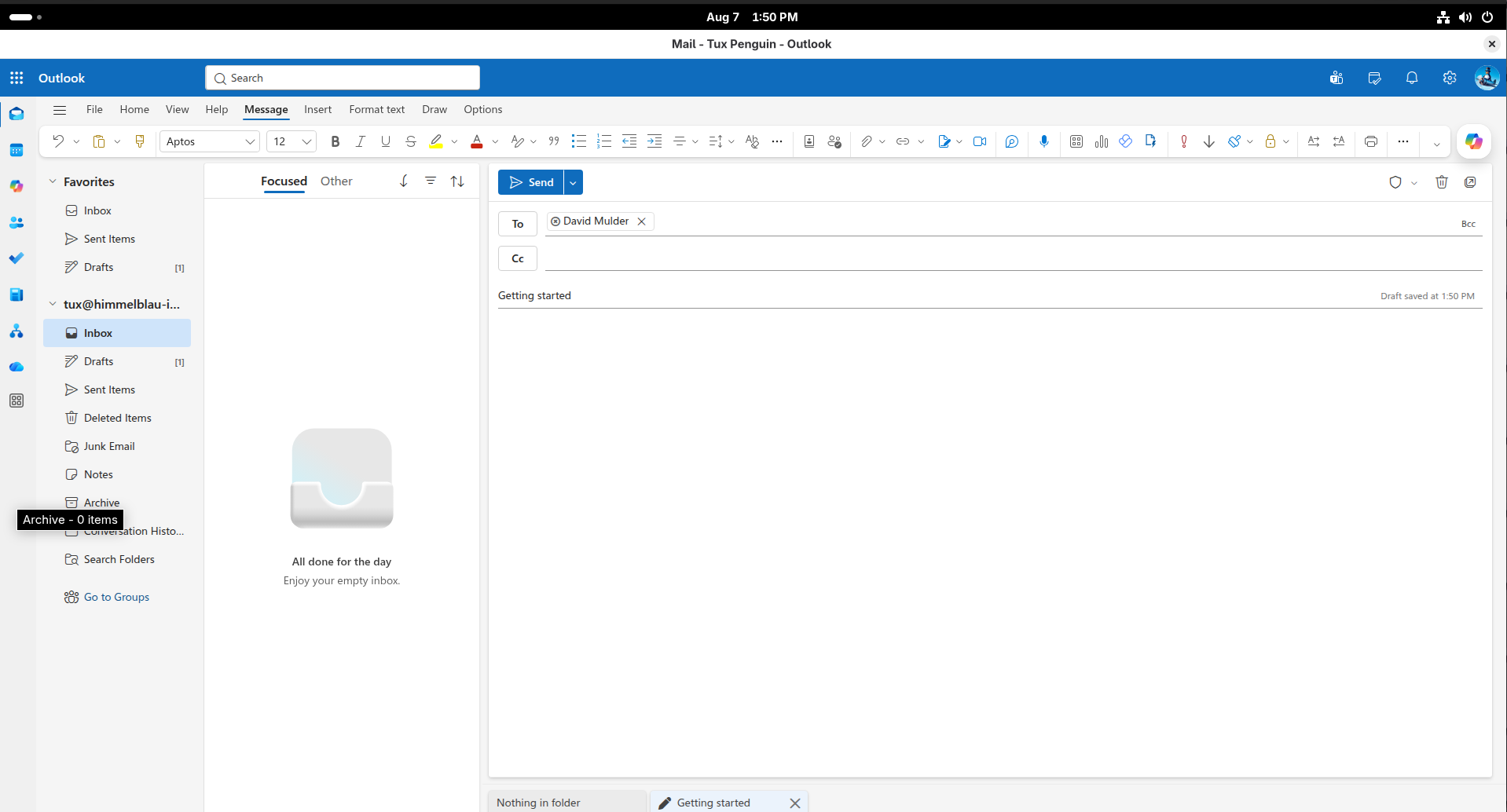
Outlook, already signed in
Open Outlook from the desktop and get straight to mail and calendar with the same authenticated identity.
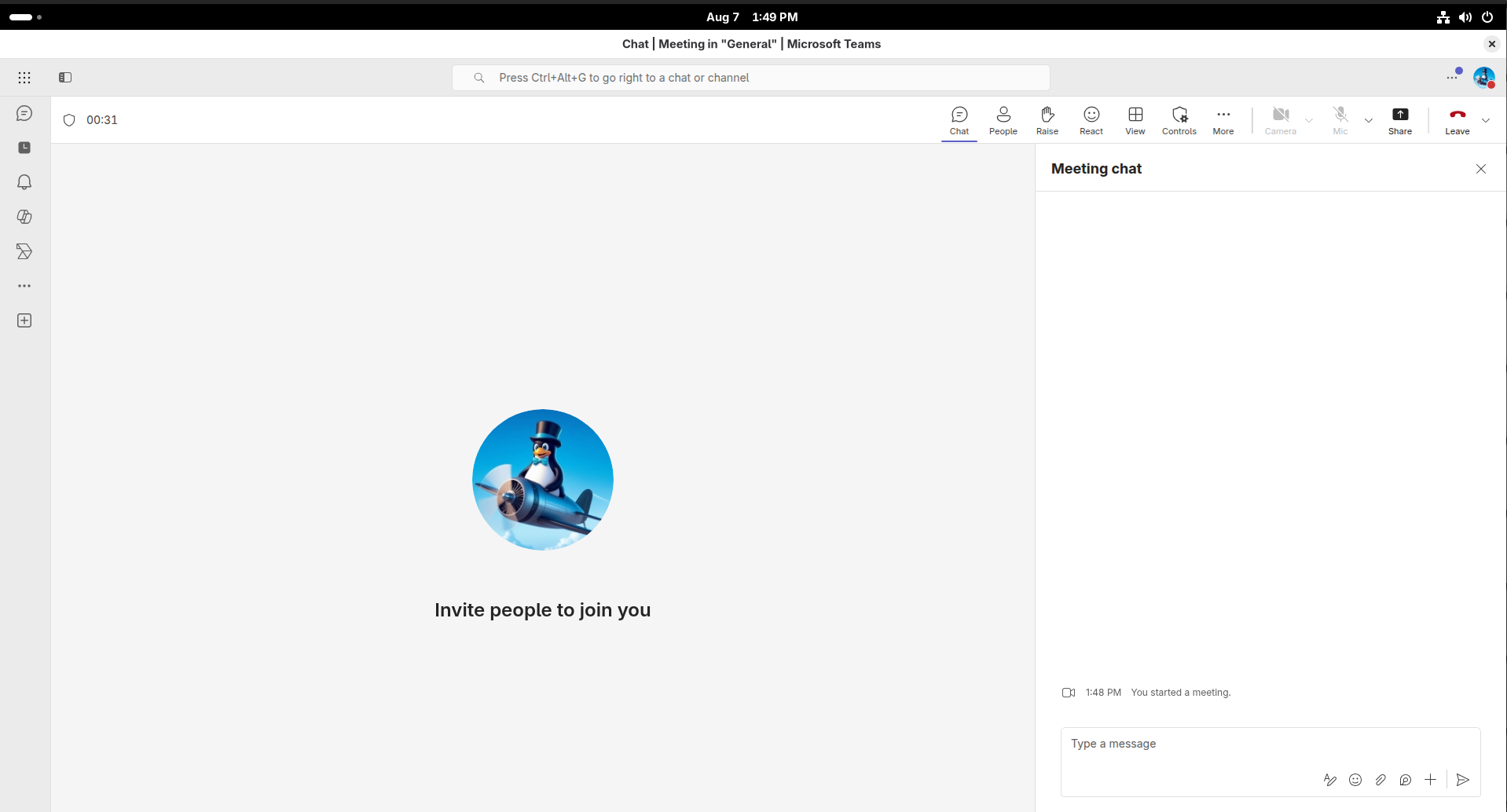
Meet in Teams
Join Teams meetings from Linux without breaking the flow of your desktop workspace.
Work in Word
Create and edit Microsoft 365 documents while remaining connected to your Entra identity.
Build in Excel
Work with spreadsheets from the Linux desktop without another round of authentication.
Present with PowerPoint
Open presentations directly from the desktop and keep the Microsoft 365 workflow connected end to end.
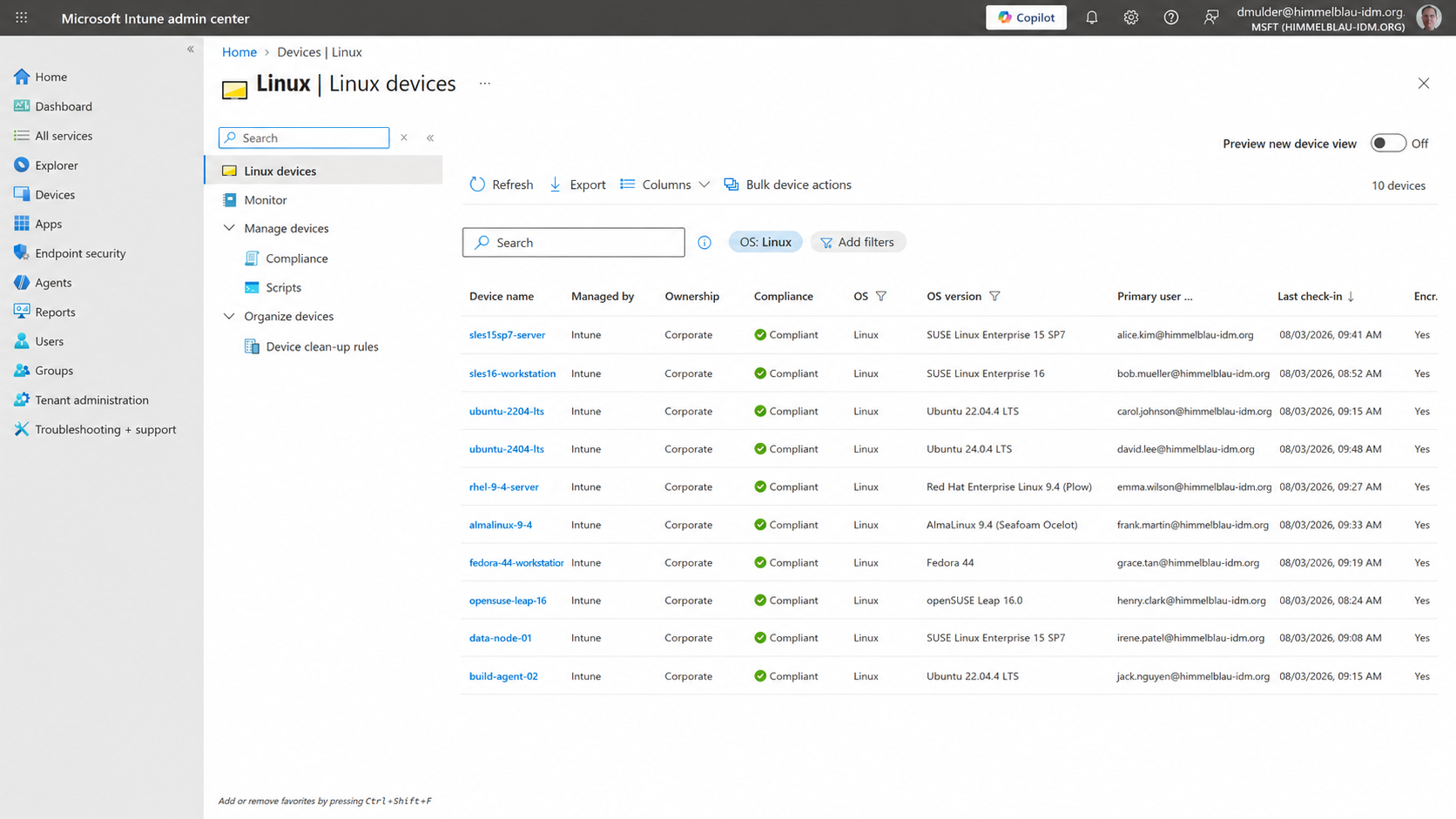
Intune integration
Linux devices, visible and compliant.
Himmelblau brings Linux devices into the Intune view and can apply compliance at authentication time.
- Linux device registration
- Compliance status in Intune
- Policy enforcement during authentication
Trusted in the open
Identity infrastructure you can inspect, test, and improve.
Review the implementation, follow development, and contribute on GitHub.
Security programGitHub Secure Open Source FundHimmelblau participated in GitHub’s project security initiative.
Himmelblau is participating in the OpenAI and Trail of Bits initiative that pairs AI-assisted research with expert review to find, validate, and patch security issues in open-source software.
 Featured in iX MagazineRead independent technical coverage of Himmelblau.Read the article →
Evaluating your options?
Compare Himmelblau with Authd, SSSD, and Intune for Linux.
Ready when you are
Bring your Linux systems into the identity plane.
The guided installer uses the native package manager, configures the identity provider, and starts the Himmelblau services.
curl -fsSL https://himmelblau-idm.org/install | shReview scripts before running them in your environment.
Using Okta? Try the Okta native MFA preview.
Ask questions, report issues, help test, or support continued development.